

Show Keystrokes On Screen for Polished macOS Demos
If you're creating any kind of tutorial or demo on macOS, you know the struggle. You're trying to explain a complex process, but your audience can't see the shortcuts you're using. The solution is simple: you need a way to show keystrokes on screen. It’s the single best way to turn a confusing follow-along into a crystal-clear guide.
Why Displaying Keystrokes on macOS Changes Everything
Have you ever watched a macOS tutorial and found yourself hitting pause, rewinding, and squinting at the screen, trying to figure out what just happened? “Wait, how did they open that menu?” It's a common frustration, and the secret to fixing it is making your keyboard shortcuts visible.
This isn't just a flashy trick; it’s about respecting your viewer's time and attention. When you make your actions transparent, you remove all the guesswork. People stop getting frustrated and start learning, which is the whole point of a Mac tutorial.
Elevating Your Content From Good to Great
Think about a developer walking through a complex coding workflow on their Mac or a graphic designer showing off their Photoshop wizardry. Without seeing the keyboard commands, the viewer is always a step behind. But when you pop the exact key combinations right on the screen, you close that gap in an instant.
I've seen this make a huge difference in all sorts of macOS-focused videos:
- Software Demos: You can clearly show off the time-saving shortcuts that make your macOS app feel powerful and efficient.
- Educational Content: Students can visually connect the action with the command, helping them learn and retain information much faster.
- Customer Support: Troubleshooting videos for Mac users become far more effective, cutting down on support tickets and frustrated customers.
Displaying keystrokes on macOS is a game-changer when you want to create explainer videos that convert, because it makes complicated instructions feel simple.
The Impact on Viewer Engagement
When your audience can follow along without getting lost, they stick around. They feel more confident, trust your expertise, and actually learn what you're trying to teach. It turns passive watching into active learning.
The goal is to remove friction. Every time a viewer has to guess a shortcut, you risk losing their focus. A visible keystroke overlay keeps them locked in, learning, and appreciating the clarity you provide.
Ultimately, showing your keystrokes isn't just a feature—it's a powerful communication tool. It adds a layer of professionalism that makes your content stand out, ensuring every move you make on your Mac is perfectly clear.
The Best Way to Show Keystrokes on Your Mac
Let's get practical. Any Mac user who has tried to show keystrokes knows the pain of juggling multiple apps—one for recording, another for the keystroke overlay, and a third for editing it all together. It's a clunky workflow that invites frustration.
A much saner way to work is with an integrated tool where showing keystrokes is a built-in feature, not some bolted-on afterthought.
For those of us on a Mac, the answer is an all-in-one application like Screen Charm. It's designed specifically for macOS, which means you can finally stop wrestling with setup and sync issues and just focus on making your content. Everything you need is right there in one place.
Activating the Keystroke Display
The real magic of an integrated tool is just how simple it is. Forget digging through System Settings for a separate app or messing with complex plugins. In Screen Charm, turning on the keystroke display is literally a one-click affair.
Right in the recording settings, before you even press record, you'll see a toggle for "Show Keystrokes." Flip it on. That’s it. From that point forward, every key you press is captured and displayed automatically, perfectly in sync with your on-screen actions.
The best workflow is one you don't even have to think about. An integrated keystroke feature means no more post-production headaches trying to line up a separate keystroke log with your video. It just works.
This is a game-changer for indie makers and developers creating product demos for macOS. With Screen Charm, you can pair the keystroke display with automatic zoom to create incredibly clear and professional-looking macOS tutorials without any real editing skills. It's not just for small creators, either; IT, retail, and healthcare teams use this for onboarding and have reportedly slashed training time by 30%. You can dig into more data on the screen recording software market to see the wider impact.
Customizing Your Keystroke Overlay
Once the feature is on, the next step is making it look good. The default style will get the job done, sure, but a custom overlay adds a layer of polish that makes your video feel uniquely yours.
The goal here is to match the overlay's vibe to your content's tone and brand. A highly technical coding tutorial shouldn't have the same visual style as a slick product marketing video for a new Mac app.
Here are the key adjustments you can make:
- Color Palette: Tweak the background and text colors of the overlay. A high-contrast combo (like black text on a white background) is great for instructional videos where readability is king. For branded content, you can dial in your company's exact hex codes.
- Font and Size: Adjust the typography to match your brand's style guide. Bumping up the font size is also smart, ensuring the keystrokes are easy to read even on the small mobile screens where so many people will watch your video.
- Position on Screen: You get to decide where the overlay lives. A central position is a common default, but you might want to tuck it into a corner so it doesn't cover up an important part of your user interface.
Real-World Customization Examples
Let's look at how this plays out in two very different macOS scenarios.
Scenario 1: The Technical Coding Tutorial Imagine you're a developer showing off complex shortcuts in your code editor on a Mac. Clarity is non-negotiable. You need an overlay that’s impossible to ignore.
- Style Choice: A bold, opaque background with high-contrast text.
- Color: A simple black or dark gray box with crisp white text.
- Font: A clean, monospaced font like Courier New that fits the coding aesthetic.
- Result: The keystrokes pop off the screen, making it easy for viewers to follow along with every single command.
Scenario 2: The Sleek macOS App Demo Now, picture a marketing video for a beautiful new macOS app. Here, the overlay should feel like a natural part of the experience—helpful, but not distracting.
- Style Choice: A subtle, semi-transparent overlay that blends in.
- Color: A slightly blurred background with text that pulls from the app's own UI colors.
- Font: A modern, sans-serif font that aligns with your brand identity.
- Result: The display gently informs the viewer without ever pulling focus from the product you’re trying to show off.
By taking just a minute or two to dial in these settings, you can create a professional-looking keystroke overlay that perfectly fits your video's purpose—all from inside the same app you're using to record.
Fine-Tuning Your Keystroke Overlay for Maximum Impact
Flipping on the keystroke display is a solid start, but the real artistry lies in the fine-tuning. A thoughtfully configured overlay looks intentional and professional, guiding your viewer’s attention without ever becoming a distraction. It’s what separates simply showing keys from using them as a powerful teaching tool.
The whole point is to make the overlay feel like a natural part of your video's visual language. This means getting strategic about its placement, timing, and exactly what information it reveals. An overlay that’s too loud can overwhelm the screen; one that’s too subtle might get missed entirely.
Strategic Positioning and Timing
Where you put the overlay has a huge impact on your video’s overall composition. The default bottom-center position is popular, but let's be honest—it often covers up crucial parts of an app's interface, especially in a dock-heavy macOS environment. I usually find that tucking it into a corner keeps it visible but out of the main action.
Timing is just as critical. If an overlay vanishes instantly, it’s hard for anyone to register what just happened. But if it hangs around for too long, it just adds clutter. I've found that a fade-out delay of 1-2 seconds is the sweet spot. This gives viewers enough time to process the command before it gracefully disappears.
A well-timed overlay respects the viewer's cognitive load. It should appear, deliver its information, and then get out of the way, keeping the focus squarely on your content.
Filtering What Viewers See
Let’s face it, not every keystroke is worth showing. Displaying every single key you press is great for a typing tutorial, but for a software demo? It’s mostly just visual noise. The best way to handle this is to filter the display to show only the keystrokes that actually matter.
- Modifier Key Combinations: I always recommend setting your tool to only display shortcuts that use modifier keys like
⌘(Command),⌥(Option),⌃(Control), and⇧(Shift). This puts the spotlight on important commands like⌘ + S(Save) or⌘ + C(Copy) while smartly ignoring all the standard text you type. - Mouse Clicks and Scrolls: Pairing keystroke displays with visual cues for mouse actions gives your audience the full picture of your workflow. For more on this, we have a great guide on how to change your mouse cursor on Mac to make it more visible.
This selective approach keeps the screen clean and ensures that when a keystroke does pop up, your audience knows it’s important.
Matching Overlay Style to Your Use Case
The visual design of your overlay should match the vibe of your video. A one-size-fits-all approach just doesn't cut it. You want to adapt the look and feel to your content's tone to maintain clarity and a professional feel.
To help you get started, here are a few common scenarios and the styles that work best for them.
Keystroke Overlay Styles for Different Use Cases
| Use Case | Recommended Style | Key Benefit |
|---|---|---|
| Technical Tutorials | Bold, opaque background with high-contrast text. | Maximum Readability: Ensures every command is crystal clear and impossible to miss during complex sequences. |
| Product Marketing Videos | Semi-transparent, minimalist look that matches brand colors. | Aesthetic Integration: Provides helpful context without distracting from the product's visual appeal. |
| Live Streaming | Larger font size with a subtle, non-intrusive animation on appear. | Immediate Clarity: Catches the eye in a busy live environment, making it easy for viewers to follow along in real-time. |
Thinking through these details transforms your keystroke display from a simple gimmick into a strategic asset that will seriously level up your macOS recordings.
Building a Seamless macOS Recording Workflow
Displaying keystrokes is a great start, but it really shines when it’s just one piece of a bigger, smoother recording process. You get a truly polished, professional result when you stop thinking of it as a standalone feature and instead weave it into your entire workflow, ideally all within a single tool like Screen Charm.
The real goal here is to create a guided visual experience where every element on the screen is working together. Showing the keystrokes tells one part of the story; other features are what complete the narrative.
Combining Visual Cues for Maximum Clarity
One of the most powerful things I've learned to do is combine the keystroke overlay with other dynamic visual aids. For instance, pairing it with cursor highlighting and automatic zoom creates this perfect trifecta of clarity. The zoom pulls your viewer’s eye right where it needs to be, the highlighted cursor shows the exact click point, and the keystroke display reveals how it all happened.
This combination makes even complex steps feel totally intuitive because you're guiding your audience's attention without them even realizing it. It’s a technique you see all the time in high-quality macOS tutorials because it just plain works, leaving no room for confusion. For more tips on this, check out our guide on screen recording for tutorials.
The flowchart below breaks down the three core adjustments—Position, Timing, and Style—that I always tweak to get the overlay looking just right.
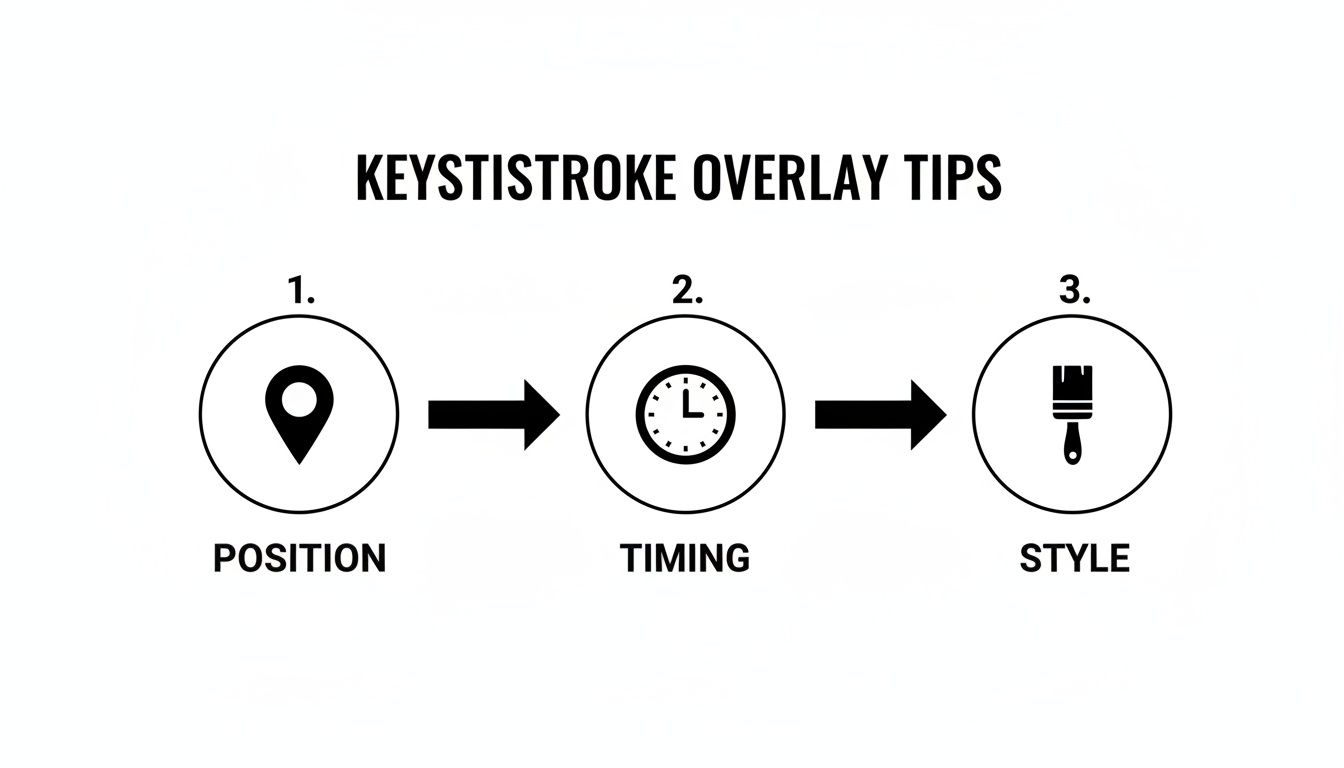
It’s a good reminder that a professional-looking overlay comes from intentional design choices, not just flipping a switch.
Reinforcing Actions with Your Voice
Don't forget that your narration is a huge part of the experience. A simple but incredibly effective habit is to verbally call out important shortcuts just as they appear on screen. Saying, "Okay, I'll save this by hitting Command-S," right as the overlay pops up reinforces the action through two different senses.
This multi-sensory approach is a game-changer for learning and retention. Consider this: in the e-learning sector, which accounted for 25% of screen recording growth, videos showing keystrokes retain 50% more viewers. It's not just for tutorials, either. Customer support teams have seen 45% faster onboarding with keystroke-enhanced videos, which says a lot about their power to clarify instructions.
My Pro Tip: A pre-flight checklist is your best friend. Before you even think about hitting record, double-check that your keystroke overlay, cursor effects, and zoom settings are all good to go. A few minutes of prep can save you hours of headaches in post-production.
To really nail this seamless macOS recording workflow, think about how your keystroke display fits in with other powerful screen recording tools. Looking into resources like this guide on free Snagit alternative tools can help you discover software that complements your visual storytelling. When you bring all these elements together, you can create incredibly polished recordings without ever having to leave your main application.
Integrated Tools vs. Standalone Apps: Which Is Better for Mac?
If you've been searching for ways to show your keystrokes on macOS, you've probably run into two main options: all-in-one recording suites and standalone visualizer apps. A dedicated app for one single task seems simple enough, but from my experience, it often introduces more headaches than it solves.
Let’s be real—your goal is to create a great macOS tutorial or demo, not to become an expert at juggling multiple apps. Using a separate program means you’re constantly managing at least two windows: one for your recording software and another for the keystroke overlay. It might not sound like much, but it adds a layer of friction to your creative process.
The Hidden Hassles of a Disjointed Workflow
The real trouble begins when you try to get these separate tools to play nice with each other. Because the keystroke app has no idea what your screen recorder is doing, you're bound to hit some frustrating roadblocks.
- Synchronization Nightmares: Ever finish a recording only to find the keystroke pop-ups are a split second behind your actual actions? It happens all the time with separate apps, and fixing it in post-production is a tedious, frame-by-frame nightmare.
- Zero Post-Production Flexibility: Standalone visualizers "burn" the keystroke overlay directly into your video file. If you later decide you don't like the color, size, or position, your only option is to re-record everything from scratch.
- Double the Configuration: Now you have two sets of preferences to manage. You have to get your screen recorder set up just right, then switch over and configure the visualizer separately. This doubles your prep time for every single recording.
An integrated tool like Screen Charm sidesteps all of this. Because the keystroke display is built directly into the recording engine, it's always perfectly synchronized. Even better, you can often tweak the look and feel non-destructively right in the editor after you're done.
Why an Integrated Approach Just Makes Sense for Mac Users
Ultimately, choosing an integrated solution is about reclaiming your time and focus. You get to spend your energy on creating compelling content instead of wrestling with technical glitches. An all-in-one tool lets you show keystrokes on screen as a natural part of your workflow, not as a clunky add-on.
This seamless experience is a huge reason why so many creators search for the best screen capture app for Mac that handles everything in one place. It saves time, kills frustration, and helps you produce a far more polished video without all the extra work.
Answering Your Questions About Showing Keystrokes on macOS
Even after getting the hang of it, a few questions always pop up when you start showing keystrokes in your Mac recordings. Let’s tackle some of the most common ones I hear from creators.
Will This Slow Down My Mac?
It’s a fair question—nobody wants a laggy computer, especially while recording. The good news is that on any modern Mac, the answer is a resounding no.
Apps like Screen Charm are built to be incredibly lightweight and are optimized for macOS. The resources needed to display a simple text overlay are so minimal that you'll never notice a performance hit. It won't mess with your recording quality or the app you're trying to demonstrate.
Can It Keep Up With Complex macOS Keyboard Shortcuts?
Absolutely. Any decent keystroke visualizer for Mac is designed to handle whatever you throw at it. We’re talking about those complex, multi-key shortcuts using ⌘ (Command), ⌥ (Option), ⌃ (Control), and ⇧ (Shift) all at once.
It also has no problem with quick sequences, like the kind you’d use in a code editor where one command fires right after another. The tool captures and displays everything in the right order, so your audience never misses a beat.
Is the Keystroke Overlay a Permanent Part of the Video?
This is a big one, and the answer completely depends on your setup. If you’re using a separate, standalone app to show keystrokes, that overlay gets "burned into" the video file. It becomes a permanent part of the pixels, and you can’t edit it later.
This is where an integrated macOS tool changes the game. With something like Screen Charm, the keystrokes are captured as a separate, editable layer.
This is a massive advantage. It means you can move the overlay, tweak its style, or even hide it entirely on certain clips after you’ve finished recording. This non-destructive workflow saves a ton of headaches and gives you a much cleaner final video.
How Does This Actually Improve My Workflow?
Showing your keystrokes is about more than just clarity; it’s a huge time-saver. Manually adding text boxes or captions for every shortcut is a tedious process that kills creative momentum.
This is a major driver in the creative software market, which is on track to hit nearly USD 15 billion by 2030. For hobbyist creators, integrated keystroke features can slash production time by up to 60%. I've even seen marketing pros report that they create promo videos three times faster, which led to a 25% jump in conversions. If you want to dive into the numbers, you can read more about the impact of video presentation software.
At the end of the day, it's about communicating your actions clearly and efficiently, making your macOS tutorials more professional and valuable for your audience.
Ready to create macOS tutorials that are incredibly easy to follow? Screen Charm builds a fully customizable keystroke display right into its recording and editing suite. Stop worrying about your tools and start focusing on your content. Download Screen Charm today and feel the difference.