

Elevate Mac Screen Recordings with Video Backgrounds
When you’re recording a product demo or a tutorial on your Mac, your background is the first thing your audience sees. For Mac users, switching to a custom video background is one of the fastest ways to level up your presentation, giving you immediate control over the first impression you make.
Why a Great Video Background on Your Mac Is a Game Changer
That initial impression is made in a fraction of a second. A cluttered, messy background can instantly torpedo your credibility, forcing your message to fight for attention against a backdrop of laundry baskets or disorganized bookshelves. This is precisely why a polished, on-brand video background is such a powerful tool for creators on macOS.
A clean, dynamic backdrop does way more than just hide a messy room—it actively builds trust and reinforces your brand's identity. Think of it as setting the stage for your presentation. The right background signals professionalism and a sharp eye for detail, which tells your viewers they’re in good hands.
Control Viewer Focus and Engagement
The whole point of a tutorial or demo is to guide your viewer's attention where you want it to go. A chaotic real-world background is full of random visual noise that can easily pull focus away from what you're actually trying to show them. A custom video background gets rid of all that.
By using a subtle, looping video, you can create a setting that’s visually interesting but not distracting. This ensures that your software demo, your cursor movements, and your own presence on camera remain the stars of the show. It’s this level of control that separates truly memorable content from the rest.
A professional video background isn't just about looking good; it's a strategic choice to direct the viewing experience, keep your audience focused, and elevate your message from the very first frame.
Reinforce Your Brand Identity
Your background is prime digital real estate, so why not use it? Instead of a generic office or a heavily blurred living room, you can feature a video background that subtly incorporates your brand’s colors, logo, or overall aesthetic.
This creates a cohesive and recognizable look across all of your video content. For educators, software developers, and marketers using a Mac, this kind of visual consistency is key to building a memorable brand that people associate with quality and expertise. It’s an almost effortless way to make your content uniquely and recognizably yours.
Where to Find (or Make) the Perfect Video Background
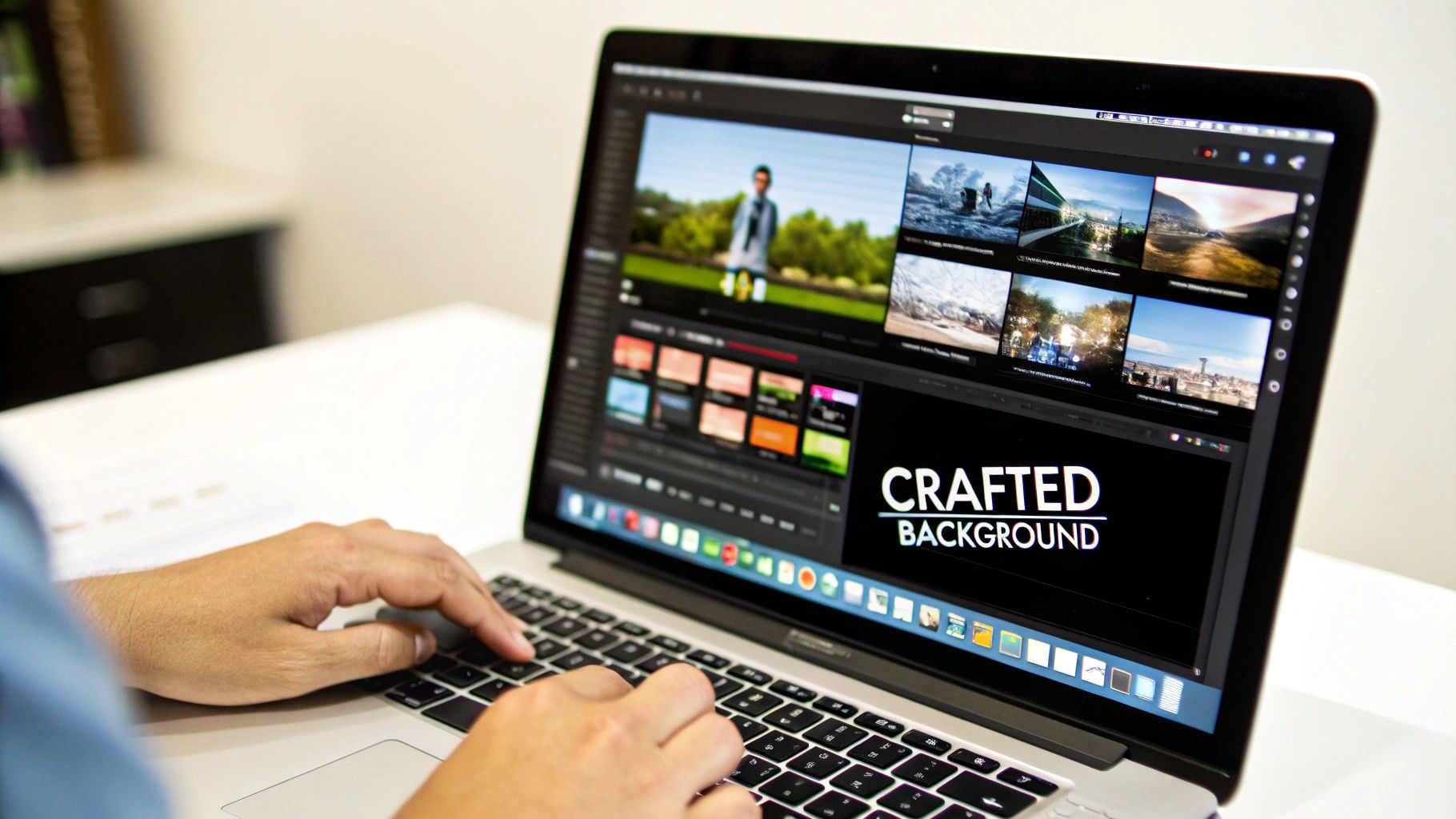
The quest for the right video background often feels like falling down a rabbit hole. You're looking for something that hits all the right notes: professional, on-brand, and—most critically—won't bog down your Mac while you're trying to record. Let’s walk through where to get great backgrounds and how to make your own.
A great starting point is royalty-free stock footage sites. Places like Pexels and Pixabay have a surprisingly deep well of free options, from subtle animated gradients to realistic office scenes. If you need something more specific or have a budget to work with, paid sites like Artgrid or Storyblocks offer huge, professionally curated libraries.
Create Your Own Custom Backgrounds
Want something truly unique? Making your own video backgrounds on a Mac is actually pretty straightforward. You don't need to be a motion graphics artist to create a simple, branded animation.
You can get surprisingly far with Apple's own Keynote. It's a powerhouse for creating simple animations. Just combine a few shapes, add text in your brand's font, and apply a subtle motion effect like "Drift." Once you have something you like, export it as a movie file, and you've got a custom background ready to go.
For a bit more creative freedom, tools like Canva or even iMovie let you layer elements and create looping animations that perfectly match your content. My advice? Keep it simple. A slow-moving gradient or a gently pulsing logo often looks far more professional than a busy, distracting scene.
Your background video should complement your presentation, not compete with it. A well-designed custom background feels like a natural part of your brand, establishing a cohesive look from the moment you hit record.
Technical Details That Matter on macOS
Picking a video isn't just about how it looks. The technical specs are what make or break its performance, especially on a Mac. The wrong file format or an unnecessarily high resolution can cause choppy recordings and send your CPU usage through the roof.
As you prep your background video, keep these three things in mind:
- File Format: For macOS, you can't go wrong with MP4 or MOV. I almost always stick with MP4s using the H.264 codec. They give you the best balance of high quality and small file size, which means better performance and compatibility.
- Resolution: A 4K background might sound impressive, but it’s usually overkill and a major drain on your system's resources. In most cases, 1080p (1920x1080) is the sweet spot—it looks perfectly crisp without overburdening your Mac.
- Looping: A seamless loop is non-negotiable. A short video, maybe 5-15 seconds long, that loops perfectly will keep the file size tiny and avoid any jarring cuts or jumps while you’re recording.
It’s also crucial that the video’s aspect ratio matches your recording canvas. If you’re struggling to get it right, you can use a video aspect ratio converter to ensure a perfect fit.
Optimizing Video Backgrounds for macOS Performance
Use this quick guide to select the right file format and resolution for your video backgrounds to ensure top quality and smooth performance on your Mac.
| Format | Best Use Case | Ideal Resolution | Performance Impact |
|---|---|---|---|
| MP4 (H.264) | The all-around best choice for web and recording | 1920x1080 | Low |
| MOV (ProRes) | High-quality editing, but large file sizes | 1920x1080 | Medium to High |
| MP4 (H.265/HEVC) | Newer, more efficient, but less compatible | 1920x1080 | Low |
| 4K (Any Format) | Only for very high-end productions | 3840x2160 | Very High |
Ultimately, sticking with a 1080p MP4 is the safest and most reliable choice for the vast majority of screen recordings on your Mac. It delivers a professional look without risking performance issues.
What About macOS's Built-in Background Features?
Apple loves to bake handy features right into macOS, and video backgrounds are no different. At first glance, using the native options seems like a no-brainer. But if you’re using your Mac for anything demanding, like screen recording, you'll quickly discover these built-in tools can be frustratingly limited and can absolutely kill your machine's performance.
Sure, it's tempting to just use what's already there. Newer versions of macOS let you blur or replace your background in apps like FaceTime. For a quick call with family, they're fine. They give you a little privacy and a bit of fun without having to install a thing.
The trouble starts when you shift from casual chats to creating polished, professional content. The native macOS background tools just weren't built for the heavy lifting of screen recording. They feel like an afterthought, and that becomes painfully obvious the moment you put your system under any real stress.
The Infamous macOS Sonoma Wallpaper Bug
A perfect, and painful, example of this is the performance bug that came with the video wallpaper feature in macOS Sonoma. Not long after its release on September 26, 2023, even users with powerful M-series Macs started noticing major slowdowns. The culprit? A pesky process called WallpaperVideoExtension.
This little extension turned into a notorious resource hog. Widespread reports showed it gobbling up to 1GB of RAM and a huge chunk of CPU power. The truly maddening part was that it happened even when people had disabled the video wallpapers entirely. Imagine trying to record a smooth software demo while a background process is actively sabotaging you, causing lag and dropped frames. You can still find plenty of frustrated user complaints about this on the Apple Discussions forums.
This whole mess really shines a light on the core problem: when a feature is baked so deeply into the operating system, a single bug can wreck your entire workflow, and there's often nothing you can do about it.
When your Mac’s performance is on the line for a high-quality screen recording, you can't afford to gamble on a system-level feature that might decide to eat up your RAM and CPU without warning. Stability is everything.
Why Native Tools Just Don't Cut It for Creators
Bugs aside, the built-in macOS background features simply lack the control and efficiency that content creators need. Here’s where they really fall short:
- Limited Customization: You're usually stuck with a handful of Apple's images or a simple blur. There's no real room to add your own branding.
- High Resource Usage: As we saw with the Sonoma bug, these features can be resource vampires, fighting your recording software for the power it needs to run smoothly.
- No Advanced Controls: Forget about fine-tuning the video processing. There are no dials for adjusting edge detection or tweaking performance settings to fit your needs.
At the end of the day, these tools were made for casual video calls, not for creators who depend on reliable, high-performance gear. When you're in the middle of recording a detailed tutorial, the last thing you need is a non-essential OS feature going rogue in the background. This is exactly why a dedicated app, built from the ground up to handle video backgrounds on a Mac properly, is the only way to go for a stable and professional setup.
Adding Custom Video Backgrounds with Screen Charm
After wrestling with the performance pitfalls of macOS’s built-in background features, it becomes pretty clear why a dedicated app is the way to go for serious creators. This is exactly where Screen Charm comes in. It’s built from the ground up to turn the often-clunky task of adding a video background into a smooth, simple process on your Mac.
Let's get practical. Firing up your custom video background in Screen Charm feels intuitive, not like a chore. The app is designed to sidestep the performance headaches you get with native Mac tools, giving you a rock-solid platform for recording silky-smooth demos and tutorials.
Your Quickstart Guide to Backgrounds in Screen Charm
Getting started is refreshingly straightforward. The moment you open Screen Charm, the background settings are right there. You can drag in your own video file or pick one from the built-in library—no need to go spelunking through system settings or stress about what’s happening behind the scenes.
The whole workflow is designed for speed:
- Import Your Video: Just drag and drop your MP4 or MOV file right into the background panel. It’s that easy.
- Pick a Built-in Option: If you don't have a custom video handy, you can grab one from a curated list of professional, low-impact video loops.
- Fine-Tune Your Look: You can also adjust settings like blur and opacity. This is key to making sure your background supports your presentation instead of stealing the show.
This direct approach means you’re creating, not configuring. The app is optimized to keep everything running smoothly, even when you're recording in 4K, which is a must for producing professional-grade content.
Sidestepping Native macOS Performance Drains
The real magic of using Screen Charm for your video backgrounds is its efficiency. It manages all the video processing within its own environment, completely separate from the system-level functions that can unexpectedly hog your resources. This is how it prevents those nasty CPU and RAM spikes that often plague native solutions.
This chart really drives the point home, showing the chain reaction of problems with native Mac background features.
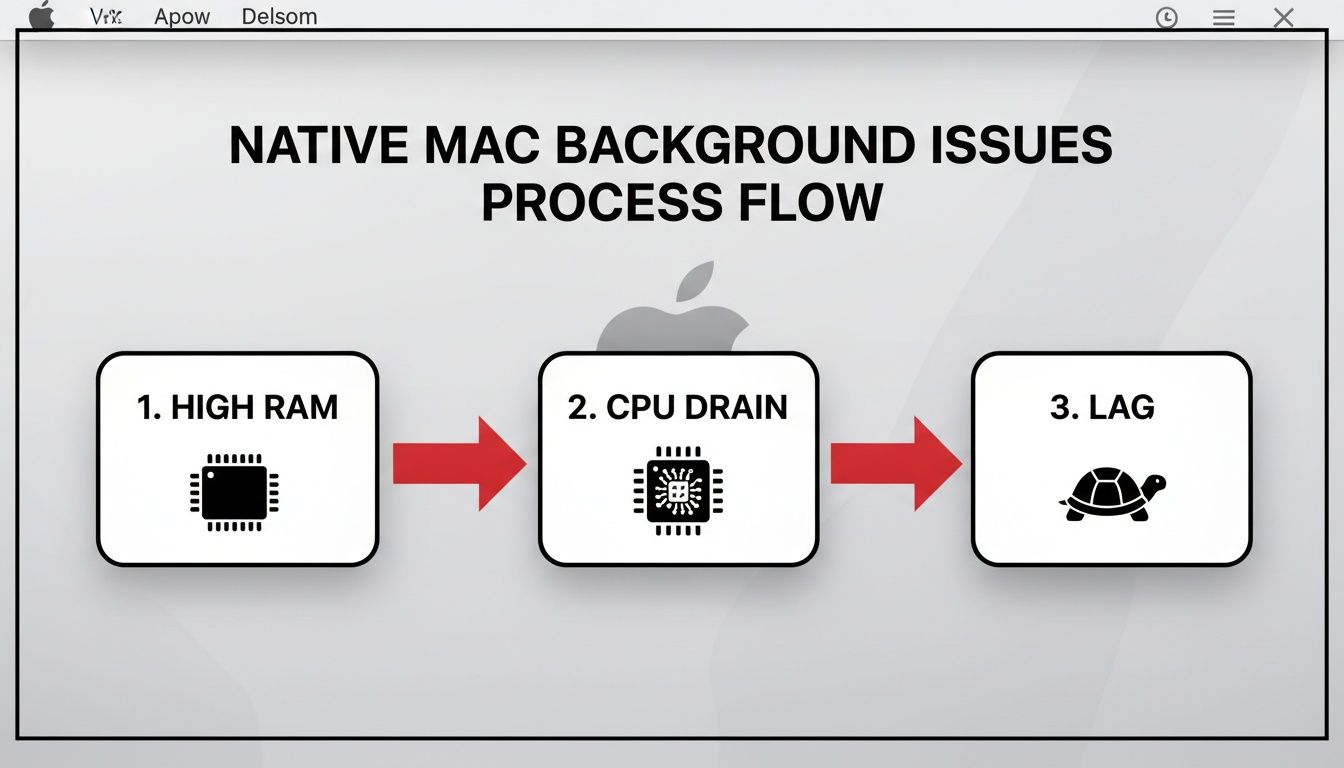
You can see how high memory usage and processor strain lead directly to recording lag—the very problem Screen Charm was engineered to solve.
By keeping the video background processing contained, Screen Charm shields your main recording from any performance hits. Your screen capture, camera feed, and audio stay prioritized, guaranteeing a flawless final video.
Integrating Backgrounds with Other Features
A great video background becomes a true game-changer when it works hand-in-hand with your other presentation tools. Screen Charm blends its background feature seamlessly with other tools like its signature auto-zoom, creating a remarkably polished final product.
Picture this: you're recording a software tutorial. As you move your cursor to a specific button, the auto-zoom elegantly hones in on that area. The entire time, your branded video background stays perfectly consistent, framing the action without a single stutter. It gives your video a professionally edited feel, but it’s all happening live as you record.
This is what sets a specialized tool apart from a generic one. It’s not just about bolting on a feature; it’s about making sure that feature elevates everything else you do, helping you create better content in less time.
How to Ensure Smooth Recording Performance
A gorgeous video background doesn't mean much if your Mac starts stuttering and dropping frames the moment you hit record. Keeping your recording smooth is absolutely essential for creating professional-looking content. Before you even think about starting a session, it's worth taking a few minutes to make sure your system is up to the task.
The easiest win here is managing your system resources. Your Mac is probably juggling dozens of background processes, and some of them can be surprisingly demanding. This is where a little-known macOS utility called Activity Monitor becomes your best friend.
Tame Resource-Hungry Processes
Before you fire up your screen recorder, open up Activity Monitor (you can find it in your Applications > Utilities folder). Once it's open, click the CPU tab and sort the list by % CPU to see what's hogging your processing power.
You might be surprised to see web browsers with a ton of tabs, cloud syncing services, or other apps you aren't even using right now at the top of the list. Just quit them. Do the same thing for the Memory tab. This quick pre-flight check frees up a huge amount of processing power and memory, giving your recording software the breathing room it needs to run without a hitch.
Proactively closing unnecessary applications is the single most effective way to prevent performance bottlenecks. Don't let a forgotten app ruin your perfect take by stealing CPU cycles at a critical moment.
Optimize Your Video Files and Storage
The technical details of your video background file itself have a massive impact on performance. Even though modern Macs—especially the ones with Apple's M-series chips—are incredible video-processing machines, a poorly optimized file can still bring them to their knees.
For the best balance of quality and performance, I always recommend sticking with the H.264 codec. While HEVC (H.265) gives you smaller file sizes, H.264 is universally supported and is generally less taxing on your system. To really dial in your settings, you can use a handy video bitrate calculator to find that sweet spot between quality and file size.
Here's another pro tip I've learned from experience: store your video backgrounds on an external SSD. Your Mac's internal drive is already busy running macOS and your recording software. By reading the large video file from a separate, fast external drive, you reduce the workload on your main drive, which often translates to smoother playback and fewer dropped frames.
If you're planning to live stream with your slick new video background, your upload speed becomes critical. A fast connection is what ensures your audience gets a smooth, high-quality broadcast. You can learn more about what makes for the Best Upload Speed for Streaming to avoid any buffering nightmares.
It's also worth noting that Apple is stepping up its game in this area. The new macOS Sequoia, announced at WWDC 2024, includes a built-in webcam background replacement feature. This processes your video feed at the system level before it even hits apps like FaceTime or QuickTime. While it's a great tool for casual calls, for polished, professional recordings, a dedicated app will always give you more creative control.
Got Questions About Mac Video Backgrounds?
So, you're ready to start using video backgrounds, but a few questions are probably rattling around in your head. That's perfectly normal. Getting this right can feel a bit technical, so let's walk through the common hurdles I see people run into.
A big one I hear all the time is: "Can I just use any video file?" While you technically can, you really shouldn't. When you're screen recording, performance is everything. The last thing you want is a choppy video because your background is hogging all the resources.
Stick to short, looping videos. The best formats are MP4 or MOV files using an efficient codec like H.264. Trust me, trying to use a massive, uncompressed 4K video file is a surefire way to bring even a powerful Mac to its knees.
Will This Slow Down My Mac?
This is probably the most critical question. And the honest answer is, it depends on how you do it. A video background can absolutely slow down your Mac, especially if you’re trying to jury-rig a solution using the built-in macOS features. They can be buggy and are notorious for causing unexpected CPU spikes.
This is where a dedicated app makes all the difference. A well-built tool like Screen Charm is designed specifically for this task, so it manages system resources intelligently to keep things running smoothly.
For the sweet spot between quality and performance on a Mac, your best bet is an MP4 file with the H.264 codec. It's the industry workhorse for a reason—it’s compatible everywhere and offers great compression. If you're on a newer Mac with an M-series chip, HEVC (H.265) is another excellent choice, offering even better compression, provided your software supports it.
The bottom line is simple: while macOS gives you some basic options, specialized software delivers the stability and efficiency you need for a professional, lag-free recording. It's all about using the right tool for the job.
Another common question is whether you need a physical green screen. The good news? Not anymore. Modern software uses some pretty sophisticated AI to separate you from your background digitally. While a proper green screen will always give you the absolute cleanest key, you can get a fantastic, professional-looking result without one.
If you're still curious about the nuts and bolts of finding and setting up these kinds of visuals, this guide on how to get live wallpapers on Mac is a great resource to have on hand.
Ready to create polished product demos and tutorials with a flawless video background? Screen Charm packs everything you need into one clean, powerful Mac app. Give it a try and see what you can create. https://screencharm.com