The Best Recording Applications for Mac to Create Polished Demos
Ever stared at your screen recording and felt like something was missing? You’re not alone. If you've tried making a product demo or tutorial with your Mac's built-in tools, you know the feeling. While QuickTime Player is handy, it often leaves you with a recording that just doesn't look professional.
That’s where dedicated recording applications for mac come in. They're designed specifically for macOS to help you create polished, high-quality videos without needing a film degree.
Why Your Mac Needs More Than QuickTime
Think of your Mac's built-in screen recorder as a point-and-shoot camera. It’s great for a quick, simple snapshot of what’s on your screen. But when you need to craft a compelling product demo, a detailed tutorial, or a marketing video that actually converts, you need more control—something more like a professional DSLR.
Dedicated recording software for macOS turns your screen into a canvas for storytelling. These apps don't just capture pixels; they give you features that save a ton of time, make your instructions crystal clear, and add a professional sheen that basic tools simply can't replicate.
The Growing Demand for Better Recording Tools
The need for great-looking screen recordings has absolutely exploded. You can see it in the market numbers: the screen recording software industry is expected to jump from USD 2.10 billion in 2025 to USD 4.62 billion by 2030.
This boom isn't just a random trend. It's driven by the massive shift to remote work, online learning, and content marketing, where clear, professional video isn't just nice to have—it's essential. You can explore more on the screen recording market growth to see just how big this shift is.
For developers, marketers, and educators on macOS, this means sticking with the basics is a real handicap. To create content that stands out, you need a tool built for the Mac.
Moving Beyond Basic Screen Capture
A purpose-built Mac app smooths out the entire video creation process. Instead of juggling multiple tools to record, edit, and polish, you get everything you need in one place. It's about working smarter, not harder.
Here are a few game-changing advantages you'll find in Mac-centric applications:
- Integrated Editors: Snip out that "um" you said, add a quick text callout, or trim the beginning and end without ever leaving the app. It's a huge time-saver compared to exporting to a separate, often complicated, video editor.
- Enhanced Visuals: These tools help you direct the viewer's eye exactly where you want it. Think automatic zoom on important details, a highlighted cursor so it's easy to follow, and a picture-in-picture webcam view to connect with your audience.
- Professional Branding: Easily add your company’s logo or a custom background. It’s a small touch that makes your videos look consistent, branded, and instantly recognizable.
What Makes a Great Mac Screen Recorder?
What really separates a basic screen grab from a professional-looking recording? It’s not just about hitting a red button. The best recording applications for mac are packed with features that solve real-world problems, turning a simple capture into a polished, engaging final product.
The Mac ecosystem has long been a go-to for creative professionals, and screen recording is no exception. This isn't a small niche; the market for Mac-focused screen recorders was valued at USD 1.2 billion in 2023 and is expected to nearly double by 2031. The Mac user base—often software developers, marketers, and educators—demands high-quality tools that can produce crisp 4K captures and run smoothly on Apple hardware. You can find more insights about the screen recorder market to see just how fast the industry is growing.
You can think of these tools as falling into a few different tiers, from the simple built-in options to powerful, professional applications designed for macOS.
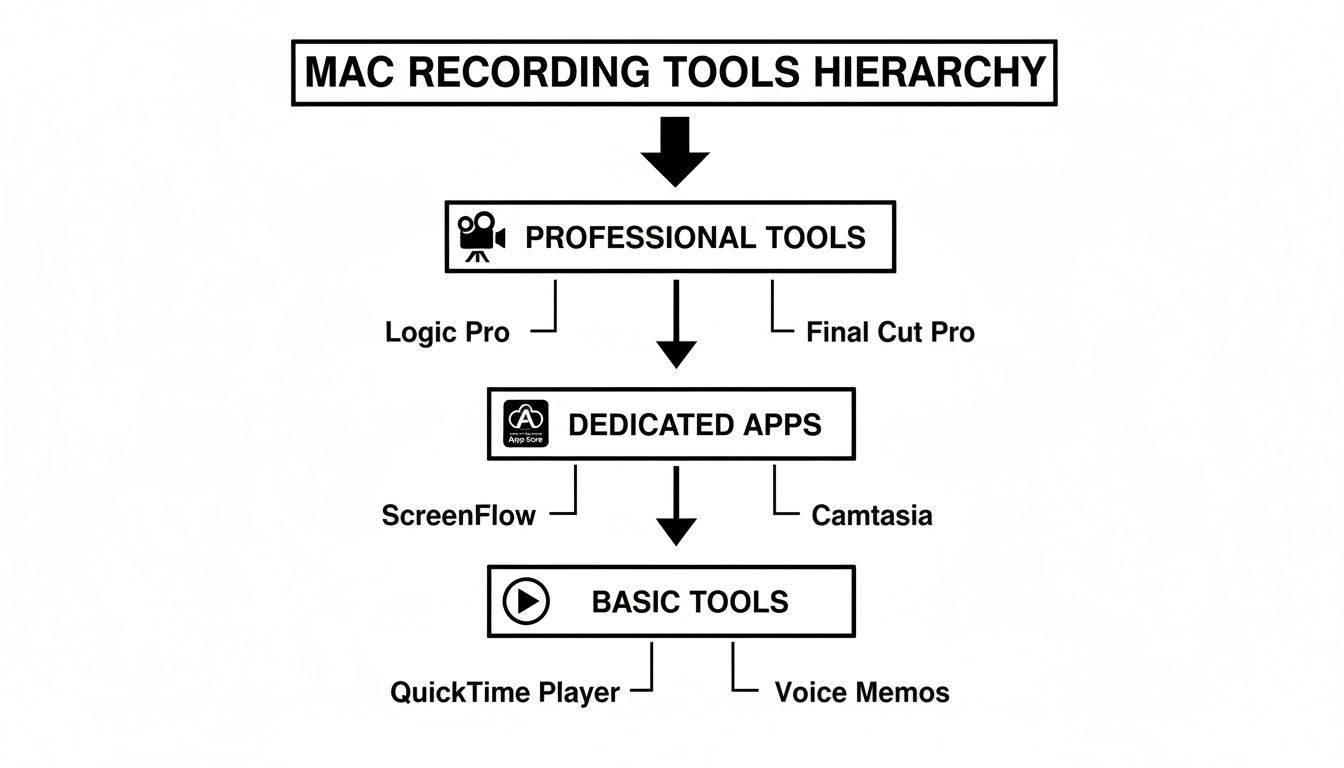
As you can see, moving up the ladder gives you significantly more control and capability, letting you create much more sophisticated videos.
Crystal-Clear Visuals with 4K Recording
First things first: visual quality. Recording in 4K resolution isn't just a nice-to-have anymore; it's the standard for professional clarity. If you're demonstrating complex software or showing off detailed design work on your Mac's Retina display, you need your audience to see every single pixel just as you do.
A blurry or pixelated video immediately looks unprofessional and, worse, can hide the very details you’re trying to highlight. It's the difference between reading a book with crisp, clean text and one with smudged ink. A pro-level recorder can handle 4K capture without making your Mac grind to a halt.
Building Connection with Webcam and Screen Capture
Recording your screen is just one piece of the puzzle. To truly connect with your audience, you need to show your face. The ability to record your Mac's webcam and screen at the same time transforms a sterile software demo into a personal, one-on-one conversation.
A professional recording tool for your Mac doesn't just capture what's on your screen; it helps you guide your audience's attention. The best applications do this automatically, saving hours of tedious manual editing and making your content instantly more dynamic and clear.
This is a game-changer for so many people:
- Educators can put a face to the name, helping students feel more connected and engaged with the lesson.
- Marketers can build genuine rapport during a product demo, which makes their message land much more effectively.
- Support Teams can create a friendly, welcoming onboarding video that makes new users feel seen and supported.
Streamlining Your Workflow with an Integrated Editor
A built-in video editor is probably the single biggest time-saver you can ask for in a Mac app. Think about the old way of doing things: record in one app, export the huge raw file, import it into a separate video editor like Final Cut Pro, make your edits, and then export it again. It's slow, clunky, and requires a lot of technical skill.
With an integrated editor, you can trim out mistakes, add callouts, and tweak effects the second you stop recording—all inside the same app. This seamless workflow is the difference between a frustrating, multi-step assembly line and having an all-in-one production studio right on your Mac desktop.
Feature Comparison Across Mac Recording App Tiers
To help you visualize the differences, here’s a quick breakdown of what you can typically expect from each level of recording software for macOS.
| Feature | Built-in Tools (QuickTime) | Mid-Range Apps | Professional-Grade Apps (like Screen Charm) |
|---|---|---|---|
| Max Resolution | 1080p / System Dependent | 1080p / 4K (often with watermarks) | Lossless 4K+ at High Frame Rates |
| Webcam Overlay | No (Separate Recording) | Basic Picture-in-Picture | Dynamic Overlays, Green Screen & Custom Layouts |
| Built-in Editor | Basic Trim & Clip | Simple Trimming, Cropping & Splitting | Full Suite: Annotations, Effects, Transitions, Audio Mixing & More |
| System Audio Recording | Requires a workaround (Soundflower) | Often included, basic controls | High-Fidelity Stereo Recording with Separate Track Control |
| Annotations & Callouts | None | Basic shapes and text | Automated Pan & Zoom, Highlights, Mouse Effects & Animated Annotations |
| Export Options | Limited (MOV, MP4) | More formats (GIF, MP4) | Customizable Presets, Direct Social Sharing, Multiple Formats (MOV, MP4, GIF) |
| Performance | Can be CPU-intensive | Variable | Optimized for Apple Silicon, Low CPU Usage |
This table makes it clear: while free tools are great for a quick capture, stepping up to a dedicated or professional app unlocks a world of creative control and efficiency on your Mac.
Choosing the Right Tool for Your Project
What's the best recording application for your Mac? It’s not the one with the most bells and whistles—it’s the one that feels like a natural extension of your workflow. A developer launching a new SaaS product on macOS has completely different needs than an educator creating a training module. Understanding this is the first step to finding software that doesn’t just capture your screen but actually helps you get the job done faster.
Think of it like picking a vehicle. You wouldn't use a sports car to haul lumber, and you wouldn't take a semi-truck for a quick trip to the grocery store. The right tool is all about the job at hand, and the same logic applies to recording applications for mac.
Your project’s purpose should dictate the features you care about. Let's break down how different professionals can use specific tools to create impressive content on their Macs.
For Software Developers and Indie Makers
If you’re a developer building for macOS, your main goal is to show off your software’s features with perfect clarity. You need to pull the viewer's eye to specific UI elements, walk them through complex workflows, and highlight exactly what makes your app special. A basic screen capture just won’t do the trick; you need something more dynamic.
This is where smart, automated features make all the difference.
- Automatic Zoom and Pan: Forget spending hours in a video editor manually adding keyframes to zoom in on a button or menu. A smart recorder does it for you by tracking your cursor, automatically magnifying the right area to create a polished demo with zero extra effort.
- Cursor Highlighting and Effects: A custom cursor or a subtle click animation makes it immediately obvious what you're doing. This tiny detail makes a huge difference in comprehension, ensuring your audience never gets lost.
- Branded Backgrounds: Instantly professionalize your demo by swapping a messy desktop for a clean, branded background. This reinforces your product's identity and keeps the focus where it needs to be: on your software.
These visuals are crucial for building excitement. If you want to dive deeper into this, our guide on how to make product demo videos offers practical steps for turning your recording into a killer marketing asset.
The right tool transforms a simple screen recording from a passive observation into a guided tour. For developers on macOS, this means effortlessly directing focus to intricate details, making complex software feel intuitive and accessible to new users.
For Educators and Trainers
As an educator or trainer using a Mac, you need to create content that is crystal clear, easy to follow, and holds your audience's attention. Your goal is knowledge transfer, and any technical friction can cause people to tune out. Your recording software should feel more like a teaching assistant than a technical hurdle.
Look for features that simplify the teaching process on your Mac:
- Webcam and Screen Overlays: Seeing a friendly face builds a connection and makes lessons more personal. A simple picture-in-picture overlay lets you talk to your students while demonstrating concepts on the screen.
- Integrated Annotations: The ability to draw arrows, add text, or highlight sections as you record is a game-changer for emphasizing key points. It's the digital version of circling something on a whiteboard.
- Simple Trimming and Editing: You don’t need a complex, Hollywood-grade video editor. A straightforward, built-in tool for snipping out mistakes or long pauses is all you need to keep your tutorials tight and professional.
For Marketing and Support Teams
Marketing teams create videos to attract new customers, while support teams build guides to help them succeed. Both need polished, on-brand content that reduces friction for the user. For projects that need an extra layer of polish, tools like Sora 2 Cinematic AI Video Generator With Audio can help elevate your final product beyond a simple screen recording. At the end of the day, the goal is to communicate value clearly, which leads to fewer support tickets and happier, more loyal customers.
Overcoming Common Mac Recording Challenges
Getting a great screen recording on your Mac should be simple, but it rarely is. You hit record, only to find the final video is plagued by a distorted microphone, a file size so massive it's impossible to share, or a cluttered desktop that completely distracts from your point. These small headaches can quickly turn a promising demo into something that looks unprofessional.
The good news is that modern recording applications for Mac are designed specifically to tackle these roadblocks. They go far beyond just capturing what’s on your screen, offering smart solutions that transform a frustrating task into a smooth, creative workflow. It’s like having a tiny production assistant living inside your Mac, handling the technical details so you can focus on telling your story.
Taming Audio and Visual Distractions
Let's start with one of the biggest deal-breakers: bad audio. A recording filled with buzzing background noise or choppy system sounds is practically unwatchable. Top-tier Mac apps solve this by giving you precise control over your microphone and system audio, often recording them on separate tracks so you can easily edit them later. Getting this right is a common struggle, which is why we put together a guide specifically on recording system audio on a Mac.
Visual clutter is just as disruptive. A messy desktop or a random macOS notification popping up can instantly derail an otherwise professional tutorial. To prevent this, advanced tools come equipped with features that act like a digital stage manager.
These features let you:
- Hide Desktop Icons: Instantly clear your screen for a clean, minimalist background.
- Use Virtual Backgrounds: Swap out your real-world backdrop for a branded image or a simple color.
- Block Notifications: Keep unexpected alerts from interrupting your flow mid-recording.
Managing File Size Without Losing Quality
Another all-too-common frustration is dealing with enormous file sizes. A crisp, high-resolution 4K recording on your Mac can easily balloon into a multi-gigabyte file, making it too big to email or upload quickly. This leaves you stuck between waiting forever for the file to compress or just settling for a lower-quality video.
It's no surprise that the demand for smart recording tools is exploding. The screen capture market is set to jump from USD 9.58 billion in 2024 to USD 10.92 billion in 2025—that’s a 14% leap fueled by the rise of remote work and online learning.
This is where intelligent export settings make all the difference. Professional Mac recorders offer optimized presets that smartly compress your video. They find the perfect balance, drastically shrinking the file size while keeping the visual quality sharp and clear. This means your final recording is not only beautiful but also easy to share on any platform.
Meet Screen Charm: The Smart Recorder Built for macOS
Finding the right recording application for Mac often feels like a compromise. You’re usually stuck choosing between a dead-simple tool that can’t handle professional work, or a complex piece of software that takes forever to learn. Screen Charm was built from the ground up to solve this exact problem, giving you a powerful, intuitive experience designed purely for the macOS ecosystem.
It’s the smart recorder that tackles the challenges we've talked about by automating the most tedious parts of creating a video. Instead of losing hours in a separate video editor, you can produce polished, engaging demos and tutorials in a fraction of the time. This app was made for macOS creators who need both quality and efficiency.
Create Dynamic Demos Automatically
The absolute game-changer in Screen Charm is its intelligent automatic zoom. The best way to think of it is as your own virtual camera operator who instinctively knows where to focus. As you move your cursor around the screen, the app smoothly zooms and pans to follow your actions, making sure your audience sees exactly what you're highlighting.
This one feature gets rid of the most time-consuming part of post-production. You can finally stop setting manual keyframes or guessing where to direct the viewer’s attention. The result is a dynamic, professional-looking recording that feels like a guided tour, all created with zero extra effort.
Polish Your Videos with Intuitive Tools
Beyond its smart zoom, Screen Charm gives you a whole suite of tools to give your videos a clean, branded feel. You can instantly transform a basic screen capture into a polished piece of content.
- Customizable Webcam Overlays: Add a personal touch by including your webcam feed in a clean, circular overlay that you can place anywhere on the screen.
- Branded Virtual Backgrounds: Swap out a messy desktop for your company logo or a custom image, keeping your brand front and center.
- Built-In Editor: Quickly trim the start or end of your recording, fine-tune the zoom movements, and make small tweaks without ever leaving the app.
Screen Charm is designed for doers—indie developers, course creators, and entrepreneurs who need to make high-quality videos without getting bogged down by complicated software. It’s all about getting professional results, fast, on your Mac.
A Fair Price with Unbeatable Support
In a world full of recurring subscriptions, Screen Charm’s pricing is a breath of fresh air. It’s a one-time purchase that gives you lifetime access to every feature, including unlimited 4K exports. This model offers predictable, long-term value, which is a huge win for Mac-based creators and small businesses watching their budgets.
Plus, when you buy Screen Charm, you get direct support from the founder. That means your questions are answered by the person who knows the product inside and out. Add in a 30-day money-back guarantee, and it becomes a totally risk-free investment in your video workflow.
If you’re ready to see how a purpose-built Mac recorder can change how you work, you can explore all the features on the official Screen Charm website.
Got Questions About Mac Recording Software? We've Got Answers.
Jumping into the world of screen recording on your Mac can feel a bit overwhelming. With so many options out there, it's easy to get stuck wondering which tool is actually right for you. Whether you're a pro or just starting out, let's clear up some of the most common questions specific to the macOS experience.
Think of this as a quick chat with someone who's been there. We'll break down everything from Apple's built-in tools to different pricing models, so you can pick the best app for what you need to create on your Mac.
Is QuickTime Player Good Enough for Professional Recordings?
For a quick, no-frills screen grab, QuickTime Player is fantastic. It’s already on your Mac, it's free, and it’s simple. But when you need to create something that looks truly professional, its limitations become obvious pretty quickly.
You won't find features like recording your webcam at the same time, adding a branded background, or customizing how your cursor looks. More importantly, it can't do any smart editing for you, like automatically zooming in on what you're clicking. This means you'll have to drag your recording into a heavy-duty editor like Final Cut Pro or Adobe Premiere Pro just to direct your audience's attention. For polished demos or tutorials, a dedicated Mac app will save you hours of painful post-production work.
What's the Big Deal With an Integrated Video Editor?
It’s all about workflow. Without one, you’re stuck in a clunky, multi-step process: record in one Mac app, export a massive video file, import it into a different app, make your edits, and then export it all over again. It’s slow, it's a technical headache, and it puts a ton of friction between your idea and the finished product.
An integrated editor changes the game entirely. You can record, trim mistakes, and fine-tune effects like zoom and pan all in one continuous flow. It collapses a complicated process into a single, intuitive experience.
This unified workflow is the secret to creating content faster and with far less frustration. It turns a multi-app nightmare into a streamlined process, freeing you up to focus on your message, not on fighting with your tools.
Do I Need a Super Powerful Mac to Record in 4K?
You might think 4K recording would bring your Mac to its knees, but modern recording applications for mac are incredibly efficient, especially on machines with Apple Silicon (M1/M2/M3 chips). They're built from the ground up to be lightweight and optimized for macOS.
This means you can get smooth, stable performance even on a MacBook Air or Mac mini, which are go-to devices for tons of creators and developers. These apps are designed to sip resources, not guzzle them. While a beefier Mac will definitely speed up the final export, you can absolutely produce gorgeous, high-resolution 4K demos on most modern Macs without a problem.
Is a One-Time Purchase Better Than a Subscription?
For a lot of people on the Mac platform—especially indie creators, educators, and small businesses—a one-time purchase just makes more sense in the long run. Subscriptions add yet another recurring bill to your monthly expenses, and that cost really adds up over time.
A perpetual license, like the one we offer for Screen Charm, means you pay once and own the software forever. That kind of financial predictability is a huge win. It gives you ownership and control over your budget, so you're not locked into paying forever just to keep using a tool you rely on.
Ready to stop wrestling with complicated editors and start creating polished, professional demos in minutes? Screen Charm offers a smarter, faster workflow with automatic zoom, branded backgrounds, and a simple one-time price. Discover how Screen Charm can transform your Mac recording process today!